
1
Protect the destination
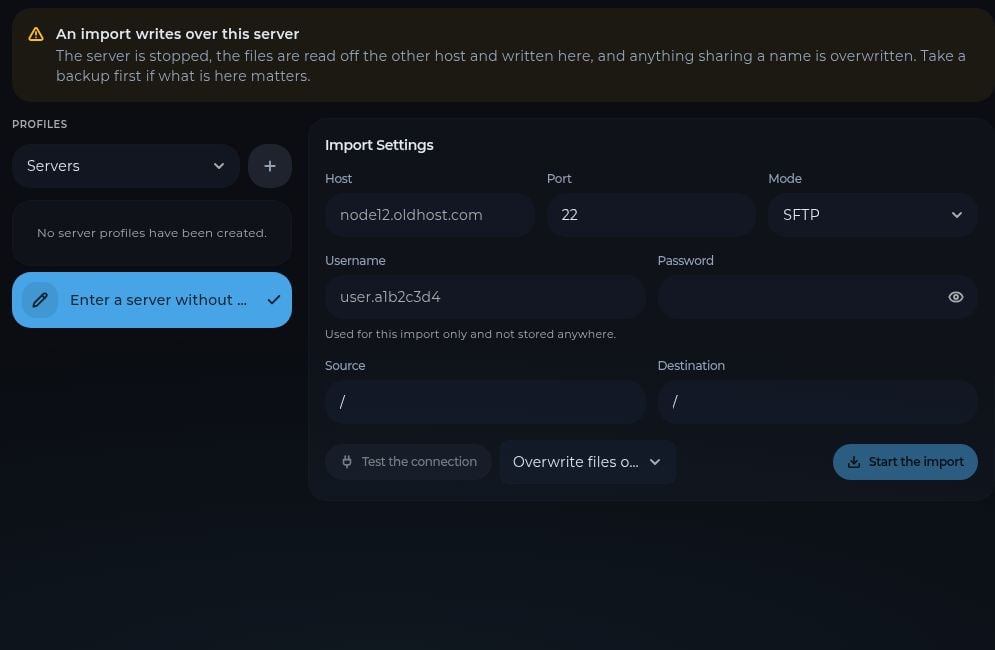
Make a backup of any files already on the Sculk server that you need to keep.
2
Enter the source connection
Enter the old host, port, transfer mode, username, and password. You can enter a server for one import without saving a profile. The panel says the password for this import is not stored.
3
Choose paths
Set Source to the folder on the old host and Destination to the folder here. The default
/ means the root of each server’s files.4
Test and import
Select Test the connection. Review the overwrite option, then select Start the import. Wait for the transfer to finish before starting the server.