
Plugins
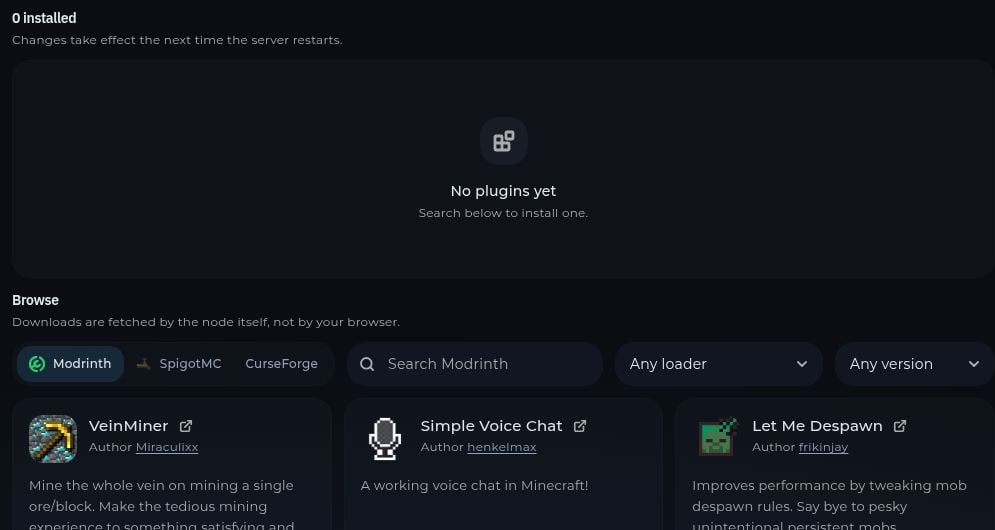
Use MC Utils → Plugins on a compatible server such as Paper or Purpur. Follow the installer to choose a plugin version that supports your Minecraft version. You can also upload plugin.jar files into the plugins folder using Files or SFTP. Restart the server and check Console for load errors.
Mods
Use a matching mod loader such as Fabric, Forge, or NeoForge before installing mods. Open MC Utils → Mods on a modded server, or upload compatible mod files intomods. If the page says there is no /mods folder, the selected server likely does not use a mod loader. Many mods also need to be installed on each player’s client.
Modpacks
Open MC Utils → Modpacks to search CurseForge, Modrinth, or Feed the Beast. Select a pack and follow the panel’s installer. A modpack writes into the server root and can overwrite files with matching names. The installer may also change the startup command to run the pack. Make a backup before installing one, especially on a server with an existing world.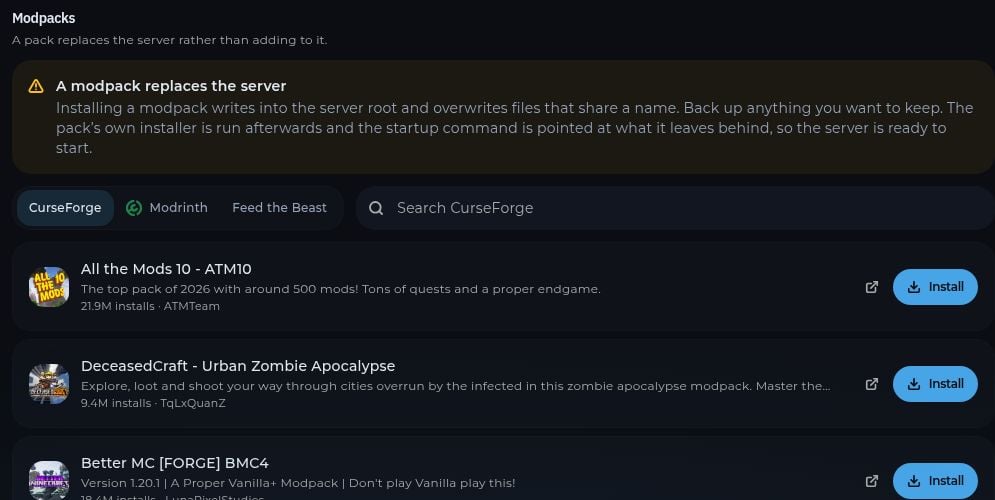
Worlds and maps
Open MC Utils → Worlds to browse CurseForge maps. Choose a compatible map and follow its install flow. If you are bringing your own world, upload its folder with Files or SFTP while the server is stopped. Check the world folder name and thelevel-name setting in server.properties before starting.
For a folder from your computer, follow Upload a world.
The World Viewer is a separate panel section for viewing world data when supported. For game settings such as difficulty or view distance, use MC Utils → Properties, save your changes, and restart when required.